이번 포스팅에서는 지난 시간에 개발한 HtmlToPdfConverter 를 사용하는 caller 쪽 코드를 살펴보려고 한다.
변환하고자 하는 html template
나는 변환하고자 하는 html template 코드를 Vue 컴포넌트로 작성하였다.
아래는 InvoiceBill.vue 의 전체 코드이다.
template 코드 가장 바깥을 감싸는 div 태그에 ref="pdfArea" 를 작성하였다.
해당 Vue 컴포넌트를 임포트 할 소스에서 pdfArea 의 ref 명으로 PDF 변환 대상 HTML element 를 가져올 것이다.
그리고, 아래는 샘플 코드이기 때문에 테이블 본문의 th 나 td 의 내용을 고정 텍스트로 작성하였지만, {{item.title}} 의 h1 태그 내용과 같이 props data 변수로 데이터 바인딩을 동적으로 시킬 수 있다.
그리고, css 와 이미지도 포함하여 HTML template 샘플 코드를 작성하였다.
<template>
<div ref="pdfArea" class="statement">
<div class="statement-header">
<img src="../assets/logo.png" width="80" height="100" alt="Logo" class="logo">
<h1>{{item.title}} 거래명세서</h1>
<p class="statement-date">거래일자: 2023년 5월 1일</p>
</div>
<div class="statement-body">
<div class="statement-section">
<h2>상품정보</h2>
<table>
<thead>
<tr>
<th>상품명</th>
<th>단가</th>
<th>수량</th>
<th>금액</th>
</tr>
</thead>
<tbody>
<tr>
<td>티셔츠</td>
<td>20,000원</td>
<td>3개</td>
<td>60,000원</td>
</tr>
<tr>
<td>청바지</td>
<td>30,000원</td>
<td>2개</td>
<td>60,000원</td>
</tr>
<tr>
<td>청바지</td>
<td>30,000원</td>
<td>2개</td>
<td>60,000원</td>
</tr>
<tr>
<td>청바지</td>
<td>30,000원</td>
<td>2개</td>
<td>60,000원</td>
</tr>
<tr>
<td>청바지</td>
<td>30,000원</td>
<td>2개</td>
<td>60,000원</td>
</tr>
<tr>
<td>청바지</td>
<td>30,000원</td>
<td>2개</td>
<td>60,000원</td>
</tr>
<tr>
<td>청바지</td>
<td>30,000원</td>
<td>2개</td>
<td>60,000원</td>
</tr>
<tr>
<td>청바지</td>
<td>30,000원</td>
<td>2개</td>
<td>60,000원</td>
</tr>
<tr>
<td>청바지</td>
<td>30,000원</td>
<td>2개</td>
<td>60,000원</td>
</tr>
<tr>
<td>청바지</td>
<td>30,000원</td>
<td>2개</td>
<td>60,000원</td>
</tr>
<tr>
<td>청바지</td>
<td>30,000원</td>
<td>2개</td>
<td>60,000원</td>
</tr>
</tbody>
</table>
</div>
<div class="statement-section">
<h2>결제 정보</h2>
<p>결제금액: 120,000원</p>
<p>결제방법: 신용카드</p>
<p>카드번호: **** **** **** 1234</p>
</div>
</div>
<div class="statement-footer">
<p>문의: 02-123-4567</p>
</div>
</div>
</template>
<script>
export default {
name: "InvoiceBill",
props: {
item: {
type: Object,
},
}
}
</script>
<style scoped>
.statement {
font-family: Arial, sans-serif;
margin: 0 auto;
max-width: 600px;
}
.logo {
max-width: 150px;
}
.statement-header {
display: flex;
align-items: center;
margin-bottom: 20px;
}
.statement-header h1 {
margin: 0;
font-size: 24px;
font-weight: bold;
flex-grow: 1;
}
.statement-date {
margin: 0;
}
table {
width: 100%;
border-collapse: collapse;
margin-bottom: 20px;
}
th, td {
text-align: left;
padding: 10px;
border-bottom: 1px solid #ccc;
}
th {
background-color: #eee;
}
.statement-section {
margin-bottom: 40px;
}
.statement-section h2 {
margin: 0 0 10px 0;
font-size: 18px;
font-weight: bold;
}
.statement-footer {
margin-top: 40px;
text-align: center;
}
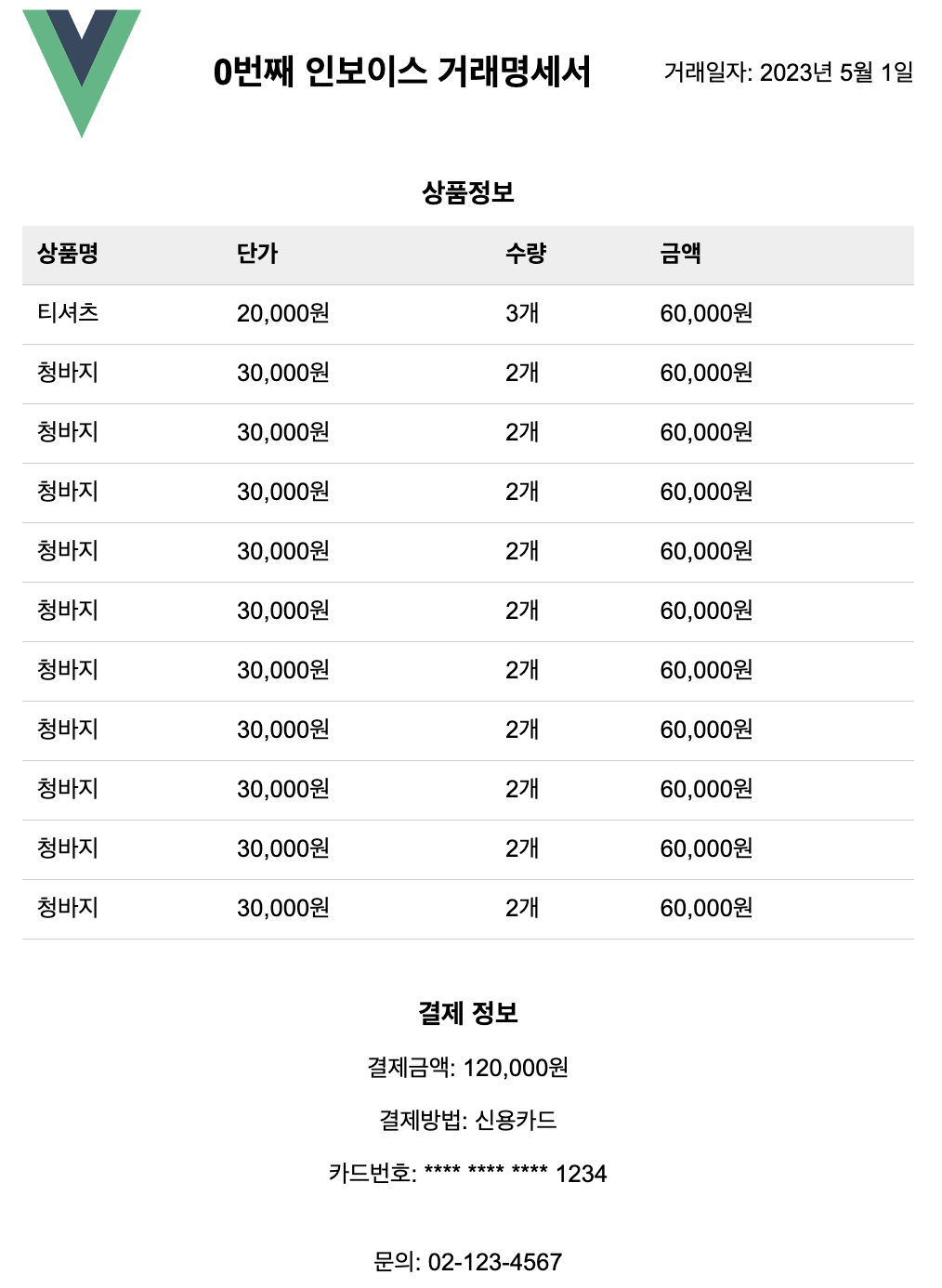
</style>위의 코드를 렌더링해보면, 아래와 같은 모양의 화면이 보여진다.
변환 대상 HTML element array 가져오기
이제 변환 대상 HTML 을 렌더링하고 element array 를 가져오자.
다음 코드는 HmlToPdfUser.vue 의 전체 코드이다.
<template>
<div class="container">
<div>
<h1 class="title">Huge HTML array to PDF Converter</h1>
<!-- 변환 버튼 -->
<button class="convert-button" @click="convertToPdf" :disabled="isInProgress">PDF 변환 및 다운로드</button>
<!-- 진행률 컴포넌트 -->
<div class="progress-wrapper">
<el-progress :percentage="percentage" :format="format" type="circle"></el-progress>
</div>
<br/>
<!-- 안내 메시지 -->
<div class="message-box">
<div class="message-content">
동일한 양식의 HTML 페이지에 원하는 만큼 데이터 바인딩 후 PDF 생성이 가능합니다.<br>
PDF 로 변환할 HTML 의 복잡도에 따라 다르겠지만, 1000 page 의 PDF 생성도 거뜬히 합니다.<br>
다만, 1개의 PDF 파일의 최대 page 수 변수를 조절해가면서 최적의 성능을 찾아보셔야 합니다.<br>
기본은 최대 page 수를 {{this.pdfMaxPageCount}} 으로 설정해두었습니다.<br>
{{this.pdfMaxPageCount}} 장이 넘어가면 pdf 를 분리해서 다운로드합니다.<br>
</div>
</div>
<!-- PDF 로 변환할 대상 컴포넌트 -->
<invoice-bill
v-for="(item, index) in items"
:key="item.id"
:item="item"
:ref="`invoiceBillRef${index}`"
v-show="false"
/>
</div>
</div>
</template>
<script>
import {HtmlToPdfConverter} from "@/components/htmlToPdfConverter";
import InvoiceBill from "@/components/InvoiceBill.vue";
export default {
name: 'HtmlToPdfUser',
components: {
InvoiceBill,
},
data() {
return {
// 전체 데이터 배열
totalItems: [],
// pdf 1개 파일의 최대 페이지 수
pdfMaxPageCount: 100,
// HTML 동적 렌더링을 위한 대상 배열
items: [],
// el-progress 관련 변수
isInProgress: false,
completedCount: 0,
};
},
computed: {
percentage() {
return (this.completedCount / this.totalItems.length) * 100;
},
},
created() {
// 전체 데이터 셋팅
for (let i=0; i<1; i++) {
this.totalItems.push({title: `${i}번째 인보이스 `})
}
},
methods: {
/** pdf 생성 버튼 클릭 event handler */
async convertToPdf() {
// 시작
this.isInProgress = true;
this.completedCount = 0;
// html to pdf converter 생성
const htmlToPdfConverter = new HtmlToPdfConverter('a4', 'portrait');
// DOM Memory leak 방지를 위해 전체 데이터 배열을 pdfMaxPageCount 단위로 slicing
const slicedItems = [];
for (let i = 0; i < this.totalItems.length; i += this.pdfMaxPageCount) {
slicedItems.push(this.totalItems.slice(i, i + this.pdfMaxPageCount));
}
for (let i= 0; i < this.totalItems.length / this.pdfMaxPageCount; i++) {
// 동적 렌더링
this.items = slicedItems[i];
await this.$nextTick(); // 렌더링 완료될 때까지 대기하기 위함
// pdf 변환할 대상 html element array 가져오기
const htmlElements = Object.keys(this.$refs).filter((key) => key.startsWith('invoiceBillRef')).map((key)=>this.$refs[key][0].$refs.pdfArea)
// pdf 변환 후 다운로드
await htmlToPdfConverter.htmlsToPdf(htmlElements, `인보이스${i === 0 ? '' : i}`, () => {this.completedCount++});
}
// 끝
this.isInProgress = false;
},
// 진행률 표시 포맷
format() {
return `${this.completedCount} / ${this.totalItems.length}`;
}
}
}
</script>
<style scoped>
.container {
display: flex;
flex-direction: column;
align-items: center;
justify-content: center;
height: 100vh;
text-align: center;
}
.title {
font-size: 24px;
font-weight: bold;
margin-bottom: 20px;
color: #17171b;
}
.convert-button {
padding: 10px 20px;
background-color: #4caf50;
color: white;
border: none;
border-radius: 4px;
cursor: pointer;
font-size: 16px;
}
.convert-button:hover {
background-color: #45a049;
}
.progress-wrapper {
margin-top: 20px;
}
.message-box {
background-color: #ffffff;
border: 1px solid #ccc;
padding: 10px 20px;
border-radius: 4px;
margin-top: 20px;
}
.message-content {
font-size: 16px;
color: #333;
text-align: left;
line-height: 2;
}
</style>
위의 코드는 template 영역, script 영역, style 영역으로 구성되어있는데, template 영역과 script 영역만 살펴보자.
template 영역
PDF 변환 및 다운로드 라는 이름의 버튼이 하나 있고, 안내 메세지가 본문에 표시되도록 작성하였다.
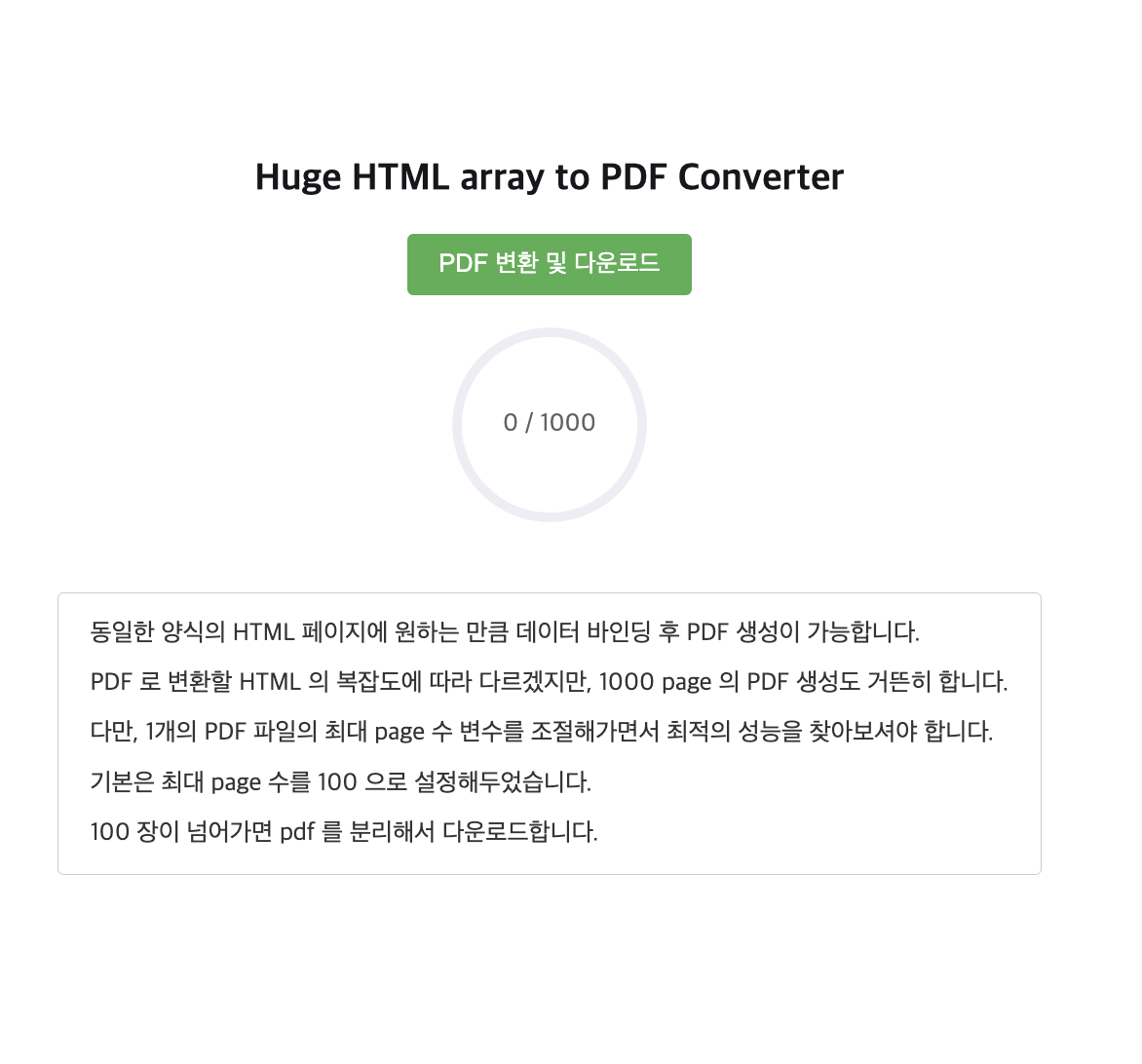
코드는 아래와 같다.
여기서 <invoice-bill> 컴포넌트를 임포트한 부분을 살펴보면, v-show 속성이 false 로 되어있기 때문에 화면에는 보이지 않지만, v-for 로 여러번 반복적으로 렌더링되는 컴포넌트임을 알 수 있다.
<template>
<div class="container">
<div>
<h1 class="title">Huge HTML array to PDF Converter</h1>
<!-- 변환 버튼 -->
<button class="convert-button" @click="convertToPdf" :disabled="isInProgress">PDF 변환 및 다운로드</button>
<!-- 진행률 컴포넌트 -->
<div class="progress-wrapper">
<el-progress :percentage="percentage" :format="format" type="circle"></el-progress>
</div>
<br/>
<!-- 안내 메시지 -->
<div class="message-box">
<div class="message-content">
동일한 양식의 HTML 페이지에 원하는 만큼 데이터 바인딩 후 PDF 생성이 가능합니다.<br>
PDF 로 변환할 HTML 의 복잡도에 따라 다르겠지만, 1000 page 의 PDF 생성도 거뜬히 합니다.<br>
다만, 1개의 PDF 파일의 최대 page 수 변수를 조절해가면서 최적의 성능을 찾아보셔야 합니다.<br>
기본은 최대 page 수를 {{this.pdfMaxPageCount}} 으로 설정해두었습니다.<br>
{{this.pdfMaxPageCount}} 장이 넘어가면 pdf 를 분리해서 다운로드합니다.<br>
</div>
</div>
<!-- PDF 로 변환할 대상 컴포넌트 -->
<invoice-bill
v-for="(item, index) in items"
:key="item.id"
:item="item"
:ref="`invoiceBillRef${index}`"
v-show="false"
/>
</div>
</div>
</template>위의 코드처럼 PDF 로 변환할 대상 컴포넌트를 작성하고, v-for 디렉티브로 바인딩하도록 컴포넌트를 임포트 받으면 된다.
script 영역
이제 script 영역을 살펴보자.
created() 영역에 PDF 변환할 대상 바인딩 데이터를 1000개로 구성하였고, convertToPdf() 함수의 내용을 보면, HtmlToPdfConverter 인스턴스를 생성한 후에 items 배열에 데이터를 동적으로 넣어주면서 대상 HTML element array 를 동적으로 렌더링하면서 $refs 명으로 대상 div 영역을 찾아오고, htmlToPdfConverter.htmlsToPdf 함수 호출을 통해 PDF 생성하는 것을 확인 할 수 있다.
이 때, 콜백함수로 () => {this.completedCount++} 를 넘겨주어 PDF 페이지 한개 추가 될 때마다 진행율을 업데이트 해주도록 처리하였다.
<script>
import {HtmlToPdfConverter} from "@/components/htmlToPdfConverter";
import InvoiceBill from "@/components/InvoiceBill.vue";
export default {
name: 'HtmlToPdfUser',
components: {
InvoiceBill,
},
data() {
return {
// 전체 데이터 배열
totalItems: [],
// pdf 1개 파일의 최대 페이지 수
pdfMaxPageCount: 100,
// HTML 동적 렌더링을 위한 대상 배열
items: [],
// el-progress 관련 변수
isInProgress: false,
completedCount: 0,
};
},
computed: {
percentage() {
return (this.completedCount / this.totalItems.length) * 100;
},
},
created() {
// 전체 데이터 셋팅
for (let i=0; i<1000; i++) {
this.totalItems.push({title: `${i}번째 인보이스 `})
}
},
methods: {
/** pdf 생성 버튼 클릭 event handler */
async convertToPdf() {
// 시작
this.isInProgress = true;
this.completedCount = 0;
// html to pdf converter 생성
const htmlToPdfConverter = new HtmlToPdfConverter('a4', 'portrait');
// DOM Memory leak 방지를 위해 전체 데이터 배열을 pdfMaxPageCount 단위로 slicing
const slicedItems = [];
for (let i = 0; i < this.totalItems.length; i += this.pdfMaxPageCount) {
slicedItems.push(this.totalItems.slice(i, i + this.pdfMaxPageCount));
}
for (let i= 0; i < this.totalItems.length / this.pdfMaxPageCount; i++) {
// 동적 렌더링
this.items = slicedItems[i];
await this.$nextTick(); // 렌더링 완료될 때까지 대기하기 위함
// pdf 변환할 대상 html element array 가져오기
const htmlElements = Object.keys(this.$refs).filter((key) => key.startsWith('invoiceBillRef')).map((key)=>this.$refs[key][0].$refs.pdfArea)
// pdf 변환 후 다운로드
await htmlToPdfConverter.htmlsToPdf(htmlElements, `인보이스${i === 0 ? '' : i}`, () => {this.completedCount++});
}
// 끝
this.isInProgress = false;
},
// 진행률 표시 포맷
format() {
return `${this.completedCount} / ${this.totalItems.length}`;
}
}
}
</script>회고
대량의 HTML elements 를 window.print() 함수 호출을 통해 브라우져에서 기본 제공되는 인쇄 다이얼로그를 띄우면, 메모리 사용량이 급증하면서 브라우져 자체가 다운되어 버리기 때문에, chunk 단위로 HTML 렌더링 후 PDF 생성하는 방식으로 기능 개발을 해보았다.
인쇄 대상 페이지가 많아도 브라우져가 뻗지 않고, PDF 로 생성할 수 있다는 장점은 확실히 있지만, 인쇄 대상 페이지가 복잡하거나 이미지가 많이 포함되어 있으면, 속도가 느리다는 단점도 있었고, html2pdf 라이브러리를 통해 PDF 생성할 때, 브라우져에서 window.print() 함수로 출력하는 이미지의 레이아웃과 스케일이 조금 차이가 있다는 부분이 단점이었다.
이러한 부분을 고려해서 해당 기능을 적용해보면 좋을 것 같다.
다음에는 더 나아가서 node 서버로 해당 기능을 구성해보고 싶다.
'Front-end' 카테고리의 다른 글
| HTML to PDF 변환기 (2) (0) | 2023.05.21 |
|---|---|
| HTML to PDF 변환기 (1) (0) | 2023.05.16 |
| Node.js와 Vue.js : 클라이언트와 서버에서 모두 사용되는 JavaScript 런타임 및 프레임워크 (0) | 2023.05.05 |


댓글